


TVGarden World Famelack TV
3.922.00 Reviews
App Specs
- Version
- 1.0.1
- Updated On
- License
- Free
- Downloads
- 500,000+
- Developer
- FANNIA APPS
- Categories
- Events
- Platform
- Android
Screenshots
 Analysis by AppCompare
I’d approach TV Garden World Video Player with one practical question in mind: do you want a simple way to play TV streams you already have, or are you expecting a complete service that supplies channels and shows for you? That distinction matters. The app’s purpose is playing streams from around the world, so it makes the most sense when you already know what you want to watch and have a stream to use. It isn’t a substitute for a paid TV subscription or a promise of a ready-made catalogue.
That focus can be useful for people who follow channels from another country, keep a personal list of streams, or want one place on their phone for viewing them. It also means the first experience may depend on the stream you bring: a player can make playback convenient, but it cannot make an unavailable or unreliable source work consistently. I’d keep expectations grounded and treat it as a playback tool rather than a content library.
Who will get the most from a stream-focused player?
If you already have legitimate stream addresses from broadcasters or other sources you trust, a dedicated player can save you from repeatedly switching between browser tabs and unrelated apps. That is the clearest use case I see here. TV Garden is an events-category app from FANNIA APPS, but its stated role is about playing TV streams, not managing an event calendar or selling access to live events.
It may suit someone who watches occasional international programming on a phone, or someone who wants to test a stream while away from a television. I would be more cautious about recommending it to a person who wants a polished, fully curated channel guide, personalized recommendations, or a subscription service with a guaranteed schedule. Those needs are better met by an established broadcaster or streaming platform that clearly organizes its own programming.
A useful routine when a stream is temperamental
For a realistic everyday example, imagine you want to follow a live broadcast while waiting for an appointment. I’d check the stream at home first, while I have time to see whether it opens and plays smoothly, rather than discovering a problem in a waiting room with a weak connection. If it works, I’d keep the stream information somewhere I can find it again and use headphones in a shared space. That small bit of preparation is more valuable than assuming any player can rescue a stream at the last minute.
If playback stalls, I’d first distinguish between a player issue and a source or connection issue: try the same stream again on a steady network, then compare it with another stream you know is working. That simple check helps avoid blaming the app for a broadcaster-side interruption. For anyone watching on mobile data, it is also sensible to be mindful of how long a live video runs; the practical cost is data use, not just battery time.
How it differs from familiar alternatives
Compared with a broadcaster’s own app, a general stream player can be more convenient when you want to bring together streams from different places. The trade-off is that broadcaster apps usually do a better job of explaining what is available and may offer programme details or a reliable official feed. A browser can be quicker for opening a single web stream, while a player is more appealing if you expect to return to the same viewing setup.
Worth Reading Before You Choose

Baby Panda World Brings Quick Play to Modern Phones, but Its Game Library Feels Busy

ESPN’s Live Game View Makes Following Close Games Easier

QuizzLand Review: A Good Fit for Short Trivia Breaks, Not Every Player

Basketball Stars: Multiplayer Is Fast, but Can It Recover When Matches Go Wrong?

WEBTOON Turns Phone Updates Into a Better Reading Routine

Link to Windows Runs on Shared Habits, Not Social Feeds
Compared with a full streaming service, this app’s appeal is its narrower role, not the size of its catalogue. If you want recommendations and a large on-demand library, use a service designed around that. If your goal is simply to play a stream you already trust, a separate player may be a more direct fit. I would not choose between these options by judging which has the most features; I’d start with where the content comes from and how often I watch it.
What Makes TV Garden World Video Player Stand Out?
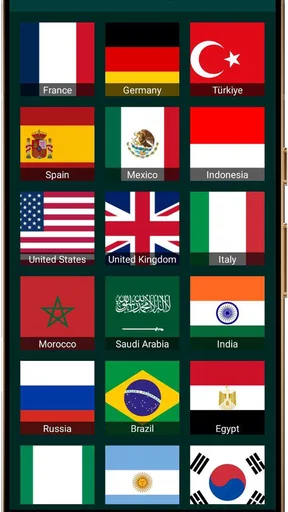
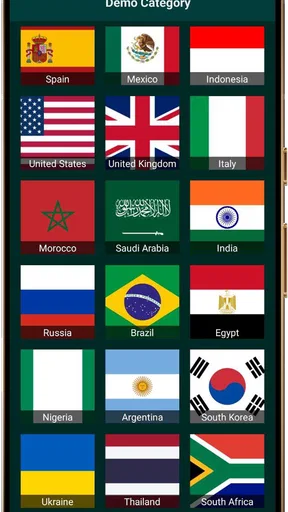
First off, let’s chat about the interface. You know that feeling when you open an app and it just makes sense? TV Garden World Video Player nails it. The layout is super intuitive. You don’t need a tech degree to navigate it, which is always a win in my book. Everything is neatly categorized, making it a breeze to find exactly what you’re in the mood for.
I’ve tried other video players that are a nightmare to use, but this one is all about user-friendliness. Plus, it looks pretty slick. The design is minimalistic but stylish, so it doesn’t feel cluttered or overwhelming.
Features You’ll Love
Okay, so what can this app actually do? Quite a lot, as it turns out. For starters, it supports a wide range of video formats. Whether you’ve got MP4s, AVIs, or even some MKVs, this app can handle it. That’s a big plus for anyone who’s tired of converting files just to watch something.
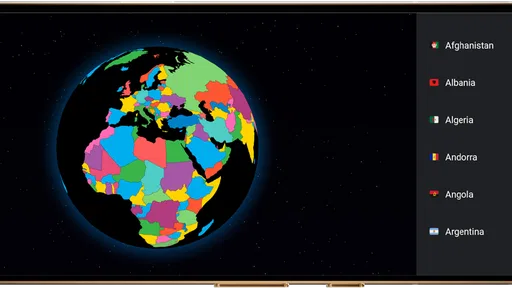
And let’s talk about streaming. This app lets you stream directly from your favorite platforms without jumping through hoops. Whether you're into mainstream shows or niche documentaries, you can access them all in one place. It’s like having a mini media center in your pocket.
Another neat feature is the playlist option. You can create and customize playlists for whatever mood you're in. Whether it’s a lazy Sunday, a workout session, or a study break, you can organize your videos to suit the vibe. The app even suggests related content, so you’re always discovering something new.
The Viewing Experience
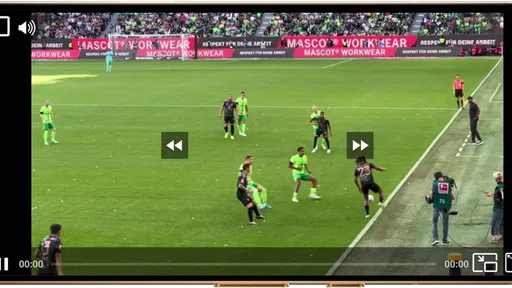
Now, let me gush a bit about the viewing experience. The video quality is top-notch. I was genuinely surprised at how crisp and clear everything looked, even on my older phone model. The app also offers customizable settings, so you can tweak brightness, volume, and even playback speed. It’s perfect for those late-night binge sessions when you don’t want to wake up the whole house.
One thing I really appreciate is the smart gesture controls. You can swipe to adjust volume or brightness, which is incredibly handy if you’re watching on the go. It’s the little things like this that show the developers really cared about user experience.
Readability, Navigation, and Daily Comfort
When I’m choosing a video player, I care less about flashy graphics than whether I can understand what to do without stopping to puzzle it out. The uncluttered presentation described in my experience is a genuine comfort for quick sessions: I can focus on getting to playback instead of learning a complicated system. Clear grouping also matters when I’m browsing with a particular channel or stream in mind, because it reduces the chance of tapping around aimlessly.
There is a difference, though, between a clean interface and an interface that works equally well for everyone. Someone who relies on large text, screen magnification, a screen reader, or a particular contrast setting should check the app on their own device before depending on it. I wouldn’t assume that a tidy visual design automatically means every label and control is easy to perceive or announce. If you can, test the main actions first: locating a stream, starting playback, and finding the playback controls.
A practical tip is to make your first session a setup session rather than a viewing session. Try navigating when you are not in a hurry, note where the controls appear, and see whether you can return to a stream without having to rediscover it. That is especially useful if you have limited attention or find unfamiliar layouts tiring. A player that feels straightforward after a short trial is more likely to fit into a routine than one that demands repeated searching.
Motor and Sensory Needs During Playback
Video playback can be easier when controls are predictable and the phone is within comfortable reach. The original hands-on impression of swipe controls for brightness and volume suggests a way to adjust viewing without hunting through several menus, but gesture-based controls can also be a mixed blessing. They may be quick for someone with precise touch, yet awkward for a person with tremor, reduced dexterity, or difficulty making the same swipe consistently.
I’d try the controls while a video is paused or during a low-stakes clip, rather than waiting until the middle of a live moment. That lets you learn how much movement is needed and whether an accidental swipe interrupts viewing. If gestures feel unreliable, the better choice may be a player whose controls are easier for you to tap, or the official broadcaster app if it presents playback options in a way you find clearer.
For sensory comfort, brightness and volume adjustments can help tailor a session, but they do not remove every issue. A bright screen may still be tiring in a dark room, and audio that is comfortable at home may be too loud in a shared space. I’d begin at a low volume, use headphones where appropriate, and pause rather than pushing through eye strain. Playback speed can be handy for some content, but for live viewing or fast-moving programmes, changing speed may not be useful; the right setting depends on what you are watching.
Access Across Places, Connections, and Devices
The app is free, carries an Everyone age rating, and has reached over 500,000 installs, which makes it easy to consider as a low-commitment option. It has an average rating of 3.7 from around 2,900 ratings, so I’d read that as a reason to try it for your own stream rather than assume it will behave identically for everyone. The current version is 1.0.1, it was released on September 28, 2025, and it requires Android 7.0 or later.
Those details help set expectations for who can install it, but they do not answer whether it will suit a particular phone, network, or personal access need. In practical terms, I’d test it on the device you plan to use and on the connection where you usually watch. A stream that is comfortable over home Wi-Fi might be frustrating in transit, where reception changes, background noise competes with audio, or holding a phone becomes tiring.
For a shared household, the simplest approach is to agree on a reliable place to watch and avoid assuming that a phone screen will be comfortable for a long group viewing session. A larger screen or a broadcaster’s own television app may be a better choice when several people need to see captions, details, or controls. On the other hand, a phone can be convenient for a short personal check-in when setting up a television would be excessive.
Where I’d Be Careful, and Who Should Skip It
The most important limitation is the one that comes with any player: playback depends on the stream itself. If a source is unstable, blocked, or difficult to access, the app cannot turn it into a dependable broadcast. I would also avoid relying on a stream of uncertain origin. Stick to sources you trust and are entitled to watch; convenience is not worth exposing yourself to questionable sites or feeds.
The app’s store description identifies it as a player for streams users bring from around the world. That makes some claims in the published hands-on description—such as support for particular file formats, playlists, recommendations, direct access to favorite platforms, ads, and a premium version—hard to reconcile with that stated purpose. I would not make a decision based on those extra claims without checking the current app yourself. For a careful buyer, the dependable starting point is its stream-playing role, not an assumed collection of bonus features.
I’d skip it if you want a guaranteed schedule, an editorially curated catalogue, or a single service responsible for both the content and the playback. It may also be a poor fit if you need accessibility controls that you have not been able to test, or if gesture interaction makes phone use uncomfortable. In those cases, an official broadcaster app, a platform with a clearly organized programme guide, or a player with controls you already know may be the less frustrating option.
My Inclusive Verdict
For me, the strongest reason to try this app is its focused idea: play TV streams on a mobile device without treating the phone as a full television service. It can make sense for a viewer who already has a trusted source and values a direct route to playback. Its free price and Everyone rating also make a cautious trial straightforward, while the Android requirement gives users a quick way to check basic compatibility.
My recommendation is conditional rather than universal. Start with one stream you already trust, test the navigation and controls in a comfortable setting, and see whether the text, touch targets, sound, and playback routine work for you. If that small trial feels clear and manageable, it could be a handy part of your viewing habits. If you need a supplied programme library, dependable broadcast support, or access features tailored to specific needs, I’d choose a service that clearly provides those things instead.
Final Thoughts
So, would I recommend TV Garden World Video Player? Absolutely. It’s a versatile, user-friendly app that’s perfect for anyone who loves their media. Whether you're a casual viewer or a serious cinephile, this app has something to offer. It's not just about watching videos; it's about enhancing your entire viewing experience.
Give it a whirl and see how it fits into your media routine. Who knows, it might just become your go-to app for all things video. Happy streaming!
Pros
- User-friendly interface for easy navigation.
- Supports multiple video formats seamlessly.
- High-quality video playback with minimal lag.
- Customizable themes and settings.
- Offline viewing mode available.
Cons
- Ads can be intrusive during usage.
- Requires a stable internet connection.
- Limited support for subtitle formats.
- Occasional crashes on older devices.
- In-app purchases for premium features.
FAQs for TVGarden World Famelack TV
What features does TV Garden World Video Player offer?
TV Garden World Video Player is packed with features including support for multiple video formats, high-definition playback, subtitle integration, and a user-friendly interface. It also offers customizable playback settings and seamless streaming capabilities, making it ideal for both casual viewers and avid media enthusiasts.
Is TV Garden World Video Player compatible with both Android and iOS devices?
Yes, TV Garden World Video Player is available for download on both Android and iOS platforms. It is optimized to run smoothly on a variety of devices, ensuring a seamless viewing experience regardless of your operating system. Check the app store for compatibility with your device model.
Are there any subscription fees or in-app purchases in TV Garden World Video Player?
While TV Garden World Video Player is free to download, it may offer in-app purchases or subscription options for premium features. These could include ad-free viewing, exclusive content, or enhanced playback options. Be sure to review the app’s pricing details on the app store before downloading.
How does TV Garden World Video Player handle video playback quality?
TV Garden World Video Player is designed to deliver high-quality video playback, supporting resolutions up to 4K, depending on your device’s capabilities. The app automatically adjusts streaming quality based on your internet connection to ensure smooth playback with minimal buffering.
Can users customize their viewing experience in TV Garden World Video Player?
Absolutely! TV Garden World Video Player allows users to customize their experience with features like adjustable playback speed, subtitle settings, and brightness control. Its intuitive interface makes it easy to navigate these options, providing a personalized viewing experience tailored to individual preferences.


